
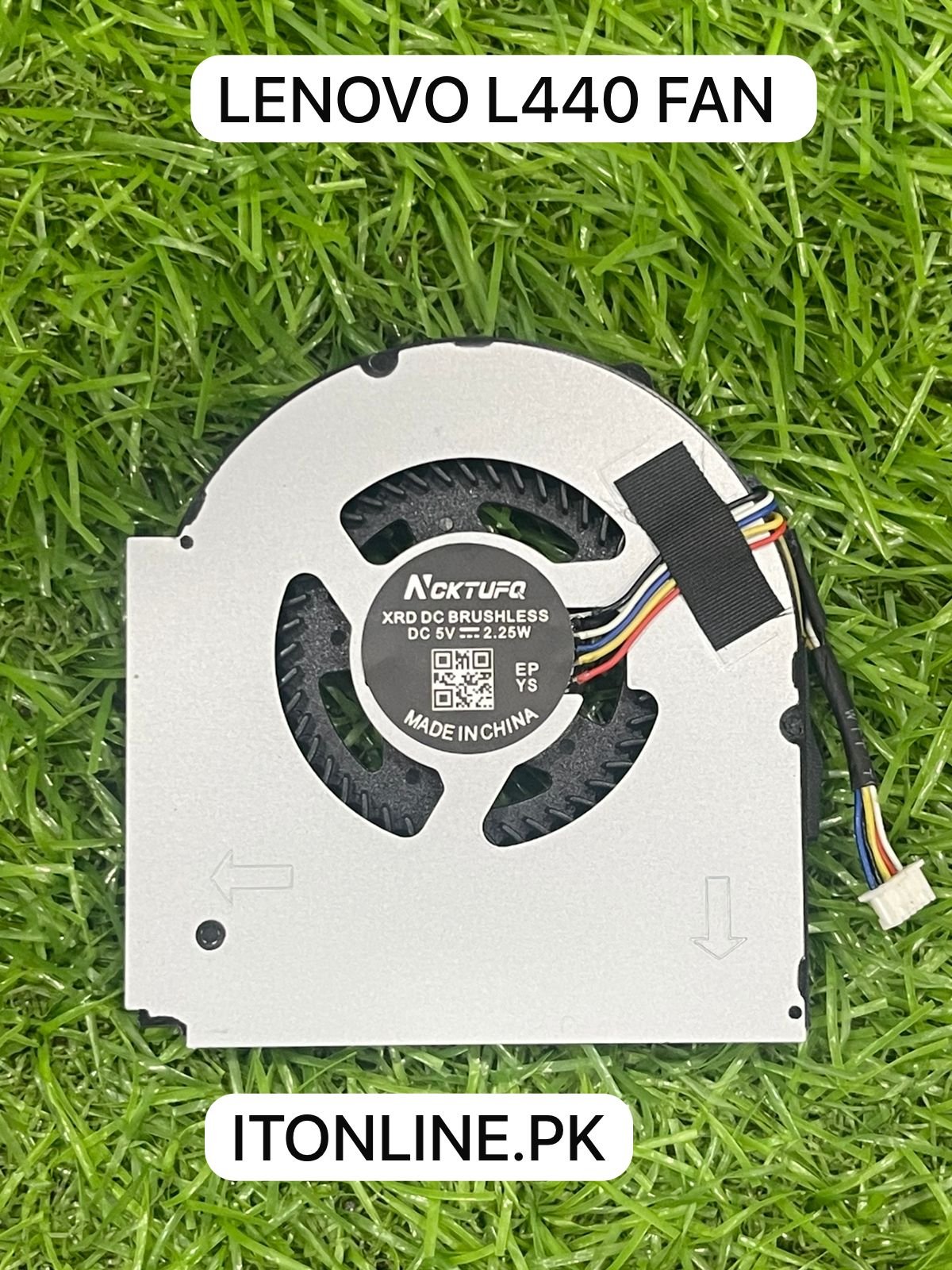
When Your Laptop Starts Running Hot
Every laptop owner in Pakistan has experienced it — your laptop feels like a furnace, the fan screams at full speed, or worse, the system shuts down without warning. These are not random glitches. They are clear warning signs that your laptop cooling fan is struggling to do its job. Ignoring these signs can permanently damage your CPU, GPU, and other critical hardware components.
At IT Online, we work with thousands of laptop users across Pakistan every year. We understand how crucial it is to catch laptop overheating problems early. Therefore, in this guide, we walk you through every major sign that tells you your laptop cooling fan needs immediate replacement — along with practical solutions to protect your device and your investment.
What Does a Laptop Cooling Fan Actually Do?
Before diving into the warning signs, it helps to understand the role of the laptop cooling fan. Your laptop generates significant heat as the processor and GPU work under load. The internal fan pulls cool air into the laptop and pushes hot air out through the exhaust vents. This process, combined with the heatsink and thermal paste, keeps your system running at a safe temperature.
However, when the cooling fan wears out, gets clogged with dust, or breaks entirely, your entire laptop cooling system collapses. Heat builds up rapidly. Your laptop throttles its performance to compensate, or it shuts down completely to prevent damage. Recognizing the signs early is the key to an affordable fan replacement before it becomes a costly motherboard repair.
Top 8 Signs Your Laptop Cooling Fan Needs Replacement
Sign 1: Loud or Unusual Fan Noise
One of the most obvious signs of a failing laptop cooling fan is loud, unusual noise. A healthy fan produces a soft, consistent hum. In contrast, a dying fan produces grinding, rattling, clicking, or whirring sounds.
This cooling fan noise typically happens when the fan bearings wear out or when debris gets stuck in the blades. If you notice fan noise that was not there before — especially a grinding or rattling sound — your fan is likely on its last legs. Do not ignore this warning. Act quickly and schedule a cooling fan repair before the fan stops entirely.
Sign 2: Laptop Overheating Frequently
If your laptop feels hot to the touch — especially near the keyboard, bottom panel, or exhaust vents — you are likely dealing with a laptop overheating problem. A properly functioning cooling fan maintains safe internal temperatures even during heavy tasks. However, a failing fan cannot keep up with the heat load.
As a result, your laptop temperature rises dangerously high. You may notice your gaming laptop becoming uncomfortably warm during gameplay, or your work laptop heating up during video calls. This is your laptop cooling system crying out for help. Monitoring your temperatures with free tools like HWMonitor or CoreTemp is an excellent way to confirm the problem.
Sign 3: Unexpected Shutdowns or Restarts
Does your laptop shut down without warning, especially during heavy tasks like gaming or video editing? This is called thermal shutdown — a safety mechanism your laptop triggers when the internal temperature exceeds a safe threshold.
Consequently, if your laptop cooling fan cannot dissipate heat fast enough, the system automatically shuts itself off to prevent permanent hardware damage. Frequent unexpected shutdowns are therefore a serious warning sign that your fan replacement is overdue. Do not treat this as a software issue — your cooling system needs immediate attention.
Sign 4: Significant Drop in Performance
Modern laptops use a process called thermal throttling to reduce CPU cooling load when temperatures get too high. Essentially, your processor intentionally slows itself down to generate less heat. The result is a noticeable drop in cooling performance and overall speed.
If your laptop suddenly feels sluggish — apps take longer to open, videos stutter, or tasks that used to run smoothly now lag — thermal throttling may be the cause. This is directly linked to a failing laptop cooling fan. Replacing the fan restores your laptop to its full performance potential.
Sign 5: The Fan Runs at Maximum Speed Constantly
A quiet laptop fan adjusts its speed based on workload. During light tasks, it runs slowly and quietly. During heavy tasks, it speeds up. However, if your fan runs at maximum speed all the time — even when your laptop is idle — it indicates your laptop cooling system is overwhelmed.
This often means the fan is failing to cool the system effectively, so it compensates by running at full speed continuously. Over time, this wears out the fan motor even faster. Moreover, constant high-speed fan noise is extremely distracting. This is a clear signal that a laptop fan replacement is necessary.
Sign 6: Blocked or Weak Airflow from Vents
Place your hand near your laptop’s exhaust vents while it runs. You should feel a steady flow of warm air. If the airflow is very weak, barely noticeable, or completely absent, your laptop ventilation system is blocked or broken.
Dust buildup is the most common culprit — it clogs the heatsink, blocks the airflow system, and chokes the fan. In some cases, however, the fan itself has stopped spinning entirely. Either way, restricted ventilation leads to severe laptop overheating and requires immediate cleaning or fan replacement.
Sign 7: Error Messages Related to Cooling
Some laptops — especially newer models and gaming laptop brands like Dell, HP, and Lenovo — display error messages or BIOS warnings when they detect a cooling failure. You might see messages like “Fan Error”, “CPU Fan Speed Error”, or “Cooling System Warning” during startup.
Additionally, Windows may display thermal warnings or your laptop’s diagnostic software may flag a cooling issue. These built-in alerts exist precisely because a failed laptop cooling fan is one of the most damaging hardware problems a laptop can experience. Never dismiss these warnings — they mean your cooling fan repair cannot wait.
Sign 8: The Fan Does Not Spin at All
This is the most critical sign of all. If you turn on your laptop and cannot hear the fan spinning — or if you can visibly see through the vents that the blades are not moving — your laptop cooling fan has completely failed.
Without a functioning cooling fan, heat builds up within seconds of starting any demanding task. This situation requires immediate laptop fan replacement. Continuing to use a laptop with a completely dead fan risks burning out the CPU, GPU, and even the motherboard — repairs that can cost far more than a simple fan swap.
Quick Reference: Symptoms vs. Severity Level
| Symptom | Severity | Recommended Action |
| Loud grinding or rattling noise | Moderate | Schedule fan inspection & repair |
| Laptop overheating during use | Moderate–High | Clean vents; replace fan if needed |
| Unexpected shutdowns | High | Immediate fan replacement required |
| Performance slowdown (throttling) | Moderate | Diagnose and replace cooling fan |
| Fan running at max speed always | Moderate–High | Fan replacement recommended |
| Weak or no airflow from vents | High | Clean heatsink and replace fan |
| BIOS fan error messages | High | Immediate professional inspection |
| Fan not spinning at all | Critical | Urgent laptop fan replacement |
Should You Use a Cooling Pad While Waiting for a Replacement?
If you notice any of the above signs but cannot get an immediate laptop fan replacement, a cooling pad can serve as a helpful short-term solution. An external cooling pad sits beneath your laptop and uses additional fans to improve airflow around the base of the device. This reduces surface temperature and eases the load on your damaged internal fan.
However, a cooling pad laptop accessory is not a permanent fix. A portable cooling pad or USB cooling fan helps manage heat externally but cannot compensate for a completely failed internal fan. Think of it as a temporary measure while you arrange for professional cooling fan repair or replacement. Popular options in Pakistan include gaming cooling pad models from Havit, Deepcool, and Thermaltake that offer high speed cooling at affordable prices.
Furthermore, an external cooler or USB cooler combined with a clean, dust-free environment can meaningfully extend your laptop’s life in the short term. Nevertheless, do not delay — schedule your laptop fan replacement as soon as possible.
How to Prevent Laptop Cooling Fan Problems
Prevention is always better than a costly repair. Here are the most effective ways to keep your laptop cooling system healthy and extend the life of your cooling fan:
- Clean your vents regularly — use compressed air to blow dust out of vents every 2–3 months
- Use a cooling pad — a quality external cooling pad reduces thermal stress on the internal fan
- Avoid soft surfaces — never use your laptop on beds, sofas, or pillows that block ventilation
- Monitor temperature — use free tools like HWMonitor to track laptop temperature regularly
- Don’t overload the system — close unused apps and browser tabs to reduce CPU and GPU heat
- Service annually — get a professional to clean and re-apply thermal paste once a year
- Keep software updated — BIOS and driver updates often improve thermal cooling management
Additionally, Pakistan’s hot and dusty climate makes regular maintenance even more important. Laptop ventilation systems clog faster here than in cooler countries. Therefore, proactive care is essential for every laptop user across Karachi, Lahore, Islamabad, and beyond.
When to Choose Fan Replacement Over Cleaning
Sometimes, simple cleaning resolves the problem. However, in other cases, cleaning is not enough. Here is a simple way to determine whether you need a laptop fan replacement or just a professional cleaning:
- If your laptop overheats after a recent professional cleaning → fan replacement needed
- If you hear grinding or rattling even after dust removal → fan replacement needed
- If the fan simply does not spin → urgent fan replacement needed
- If BIOS reports a fan error → fan replacement needed
- If your laptop has not been cleaned in over a year → start with cleaning first
- If the laptop runs cool after cleaning → no replacement needed yet
At IT Online, our certified technicians diagnose the exact cause before recommending any repair. We offer transparent, affordable laptop fan replacement services for all major brands — Dell, HP, Lenovo, Asus, Acer, Apple, and more — across Pakistan.
Why IT Online Is Pakistan’s Best Choice for Laptop Cooling Fan Repair
When your laptop cooling fan needs replacement, you need a trusted, experienced team. IT Online provides Pakistan’s most reliable cooling fan repair and laptop overheating solution services. We source genuine, heavy duty cooling fan replacements that match your laptop’s exact specifications for optimal airflow system performance.
Moreover, our technicians complete most cooling fan replacements within 24 hours, so you get your laptop back quickly. We also apply fresh thermal paste during every cooling service, ensuring your heatsink and fan work together at maximum efficiency. Whether you need a quiet fan for office work or a best cooling fan for your gaming laptop, IT Online has you covered.
Contact IT Online today to book your laptop cooling fan diagnostic and give your device the thermal cooling solution it deserves.
Frequently Asked Questions
1. How do I know if my laptop cooling fan has stopped working?
If your laptop overheats quickly, shuts down unexpectedly, or you cannot feel airflow from the exhaust vents, your laptop cooling fan may have stopped. You can also listen for the absence of fan noise during startup or use diagnostic tools to check fan speed.
2. Can I still use my laptop if the cooling fan is broken?
We strongly advise against it. Without a functional cooling fan, your laptop will overheat rapidly, leading to thermal throttling, sudden shutdowns, and potentially permanent damage to the CPU, GPU, and motherboard. Schedule a laptop fan replacement immediately.
3. How much does laptop cooling fan replacement cost in Pakistan?
The cost of laptop fan replacement in Pakistan typically ranges from PKR 1,500 to PKR 5,000 depending on the laptop brand, model, and fan type. IT Online offers competitive, transparent pricing with no hidden charges.
4. Can a cooling pad fix my overheating problem?
A cooling pad or external cooling pad can reduce surface temperature and provide relief in the short term. However, it cannot replace a broken internal fan. Use it as a temporary measure while arranging for professional cooling fan repair or replacement.
5. How long does a laptop cooling fan last?
On average, a laptop cooling fan lasts three to five years with normal use. However, heavy workloads, poor ventilation, dust accumulation, and Pakistan’s hot climate can shorten its lifespan significantly. Regular cleaning and a cooling pad can extend fan life.
6. Why does my laptop fan make a grinding noise?
Grinding or rattling fan noise usually indicates worn-out fan bearings or debris stuck in the fan blades. This is a warning that your cooling fan is failing. Schedule a cooling fan repair or replacement before it stops working entirely.
7. Is it safe to clean my laptop cooling fan myself?
You can blow compressed air through the exhaust vents to remove loose dust. However, opening the laptop to clean the heatsink and internal fan directly requires technical skill. Improper cleaning can damage the cooling system. IT Online recommends professional cleaning at least once a year.
8. What causes a laptop cooling fan to fail?
Common causes include dust buildup blocking airflow, worn-out fan bearings, physical damage from drops, continuous high-load usage (especially on gaming laptop models), and age-related wear. Pakistan’s hot and dusty environment also accelerates cooling fan wear significantly.
9. How can I reduce laptop overheating without replacing the fan?
You can reduce laptop heating by cleaning the vents regularly, using a portable cooling pad, avoiding blocking the laptop ventilation vents, closing background apps, updating BIOS, and re-applying thermal paste. However, if the cooling fan is faulty, these measures provide only limited relief.
10. Which laptop brands are most prone to cooling fan issues?
While any laptop can develop cooling fan problems, brands known for slim designs — such as certain MacBook, Asus ZenBook, and HP Spectre models — are more prone to laptop overheating due to compact thermal cooling systems. Gaming laptop models that run intensive workloads also experience fan wear faster. IT Online services all major brands across Pakistan.
